![fusion-graph-white (1).png]](https://fusiongraph.resulting-it.com/hs-fs/hubfs/fusion-graph-white%20(1).png?height=40&name=fusion-graph-white%20(1).png)
Creating an Organisation
Before uploading client data to FusionGraph an organisation must be created in the Staging or Live environment. Contact a member of the development team to have an organisation created for the Roadmapping engagement.
User Management and Access Control
There are three levels of user permissions within FusionGraph. You can assign each of your team with one of these levels to give them access to the features they need.
Customer Admin
The Customer Admin role is for your system Administrator. They can do everything - set up new accounts, change permissions, import data, delete imports and add, edit and delete information within the system. You should limit this role to one or two people ideally.
Editor
Editors can do everything that Customers can do, plus add, edit and delete items within the system.
Customer
Customer permissions provide basic access to the system. It allows you to search and view information and save / load views. These users are not able to make any changes to any data as this is a view only role.
Changing Permissions
Permissions can be changed from within Menu -> [Organsiation] Setup.
Within the Organisation Users section, all users are listed with their access current level.

To the right of the account details is a dropdown containing each level. By selecting a new level you will change their permissions.

Adding New Users
The [Organsiation] Setup area also lets you invite people to set up an account by entering their name and email address. This will send them an email containing full instructions about how to login and set their password.
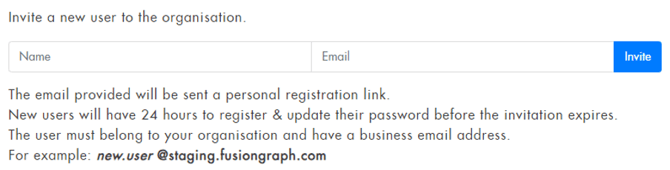
If a user already has an account in the system, (e.g. they are part of another organisation in Staging or App) they can be added to the organisation by using the drop down menu.

Two-Factor Authentication (2FA)
It's possible to set up two-factor authentication for FusionGraph users if required. This will require users to supply a mobile phone number as well as an email address in order to access the product. If you require this to be activated for your organisation please contact Resulting.
Creating Data Layers, Classifications & Relationships
Once an organisation has been created it can be customised to suit the needs of the engagement.
A series of setup steps is required to bring the standard layers, classifications and relationships into your FusionGraph organisation. This must be done before any data can be added or imported.
Custom layers, fields, classifications and relationships can also be created to represent items not included in the standard pre-delivered templates.
Layers and classifications can all be allocated with an icon and colour to make visibility and usability easier.
Data layers can be added for the following areas:
- OrgGraph - For contextual information about an organisation. For example, Applications, Business Processes, Geographies, Interfaces, Data, Partners, etc.
- FactGraph - For knowledge in the form of ‘facts’ about an organisation's current situation. Facts are ‘static’ things like workarounds, ways of working or inefficiencies
- PlanGraph - For plans about what organisations are (or might be) doing in the future. Plans represent projects and roadmaps and have a possibility, timeframe and status
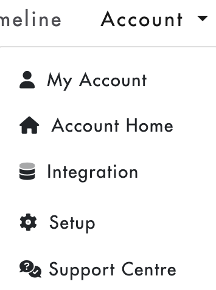
Select Account and then click Setup to add standard data layers to FusionGraph.
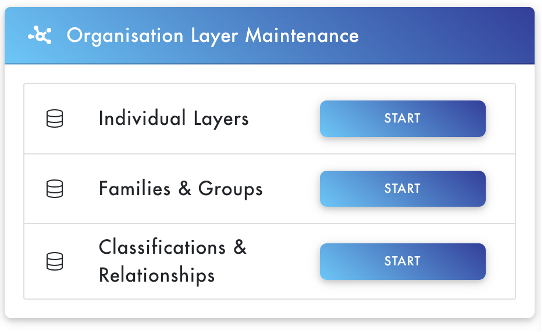
In the Organisation Layer Maintenance menu click the Individual Layer - Start button to begin selecting individual layers.
In the Individual Layers Menu select the OrgGraph, FactGraph or PlanGraph and choose which layers to add using the Add Layer button.
In the example below the Strategic Thrusts, Applications, Business Units, Data Entities and Geographies layers have all been added to the OrgGraph.
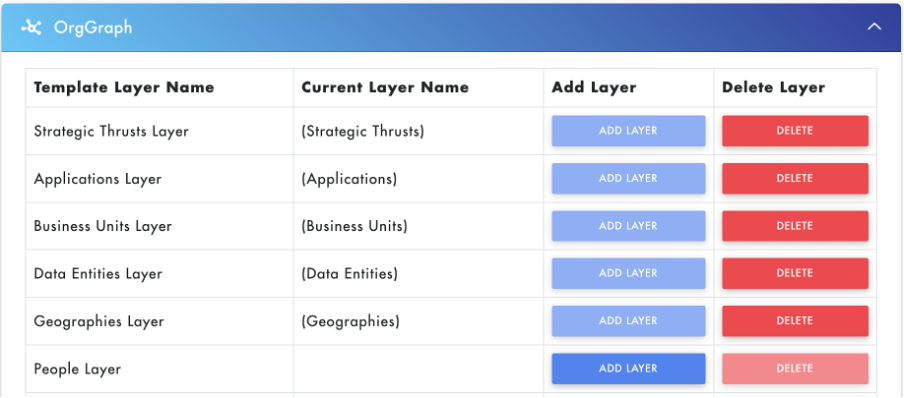
Layers can also be deleted here as well if required but if done so then all data currently added to the later will be permanently deleted from FusionGraph.
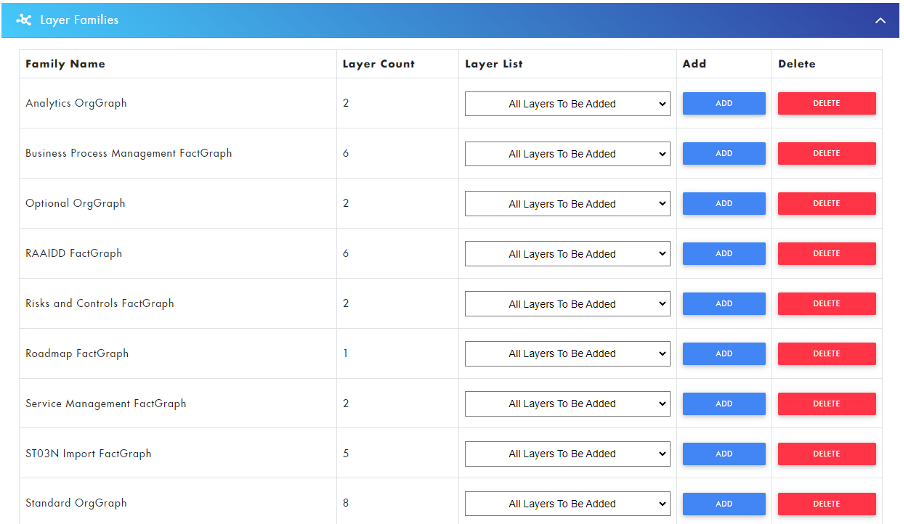
Alternatively the Families and Groups option can be used to add preselected groupings of layers. For example, use the Business Process Management FactGraph family to add all 6 layers in that group in one step.
Classifications & Relationships Configuration
Add the required layer classifications and relationships from the FusionGraph template datasets via the Classifications & Relationships option.
This needs to be done individually layer by layer for the required items.
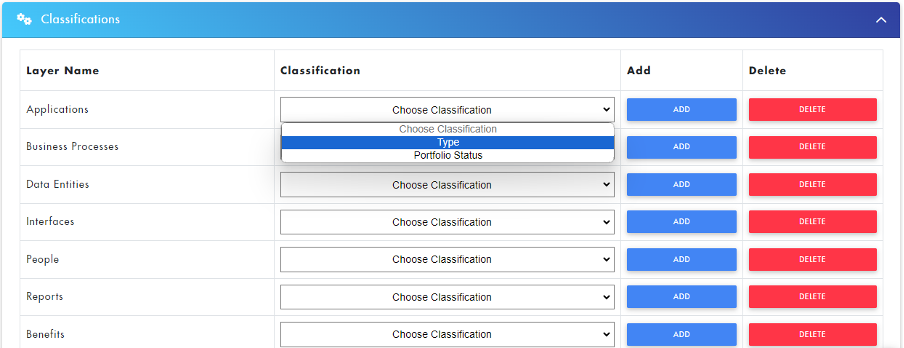
For classifications, choose the drop down next to each layer, select the required classification and choose Add. This needs to be done for each item in the drop down list one by one.
For relationships, add the required relationship connection using the Add button next to each one.
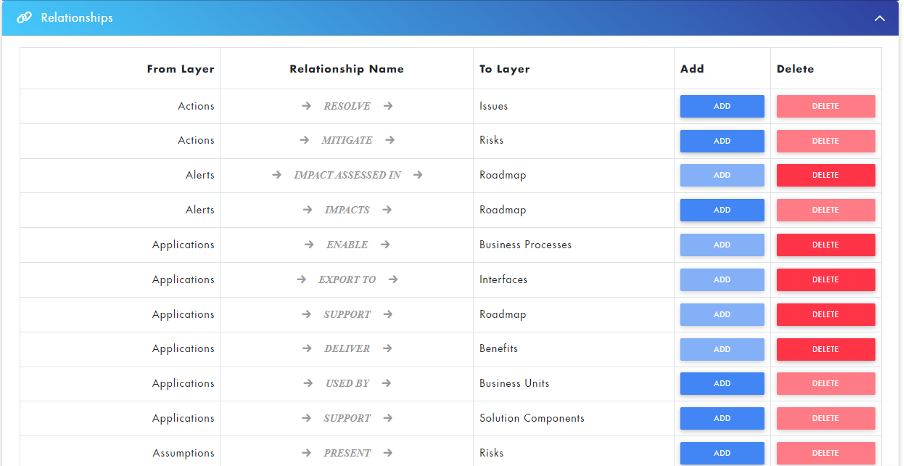
Similarly, classifications and relationships can be deleted in the same way if they are not required.
Custom Layer Configuration
You can create custom layers in the OrgGraph, FactGraph and PlanGraph if required to represent your own data entities that are not part of the standard pre-delivered FusionGraph template datasets.
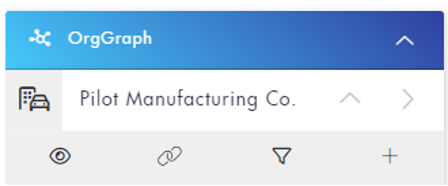
To do this expand the parent item in the appropriate section and choose +
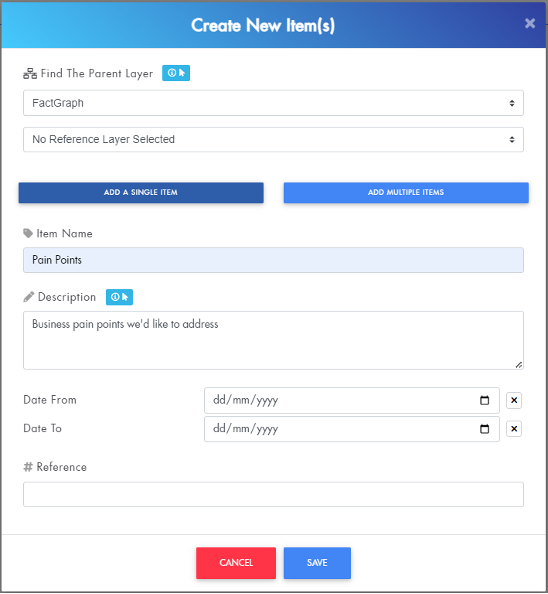
Choose the top level layer and enter the required details to create a new custom data layer in the required section. Here we see a new Pain Points later being added to the FactGraph.
Creating Custom Classifications
Each layer can have a specific classification that categorises the items of that layer.
Classifications describe things that are broadly unique to that layer. Classifications tend to be adjectives, For example:
- Type
- Priority
- Complexity
To create a classification add the parent layer to the canvas and double-click into it to open the properties.

Select the Cogs Icon to configure available classifications for the layer's items.
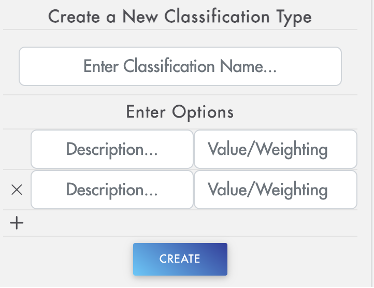
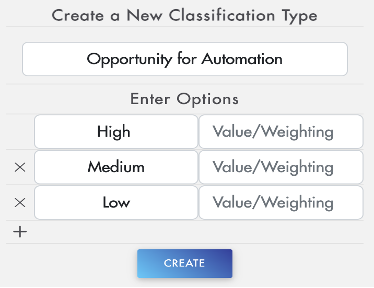
Here you can create a new classification by entering a classification name and the options available for the classification.
In the example below a new classification has been entered for Opportunity for Automation with the available options including High, Medium and Low.
To confirm and create the classification click the Create button.
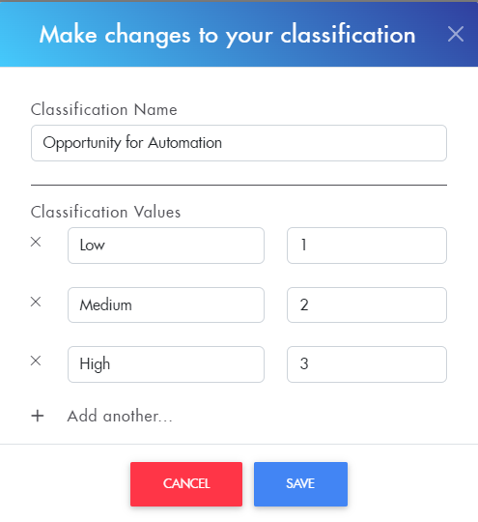
To configure the classification texts and value you can use the edit option:
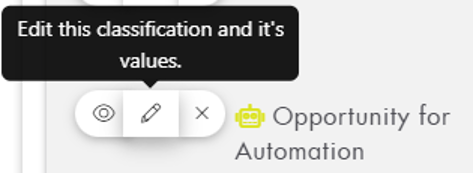
To configure the classification details, icons and colours you can add the details to the canvas.
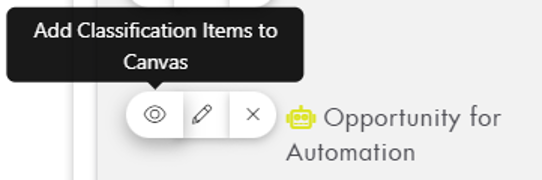
Then each item can be double clicked to amend the details.
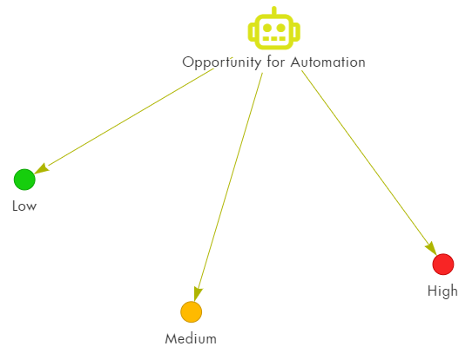
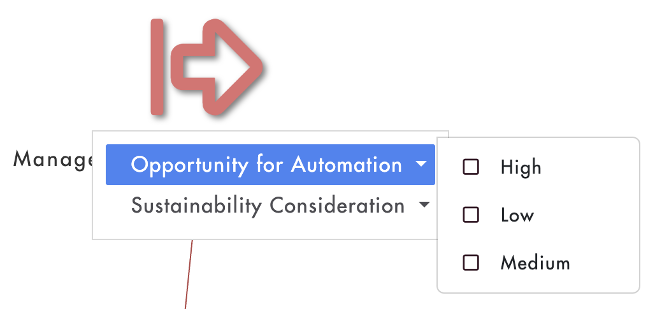
To confirm the classification has been created correctly, add an item from that layer to the canvas and right-click to view the classification options will now be available for all items in that layer:
Creating Custom Connections/Relationships
To create a connection, add the parent layer to the canvas and double-click into it to open the properties.
Select the Link Icon to configure available connections for the layer's items.
You can enter the relationship between your layer with another and create a connection. The connection names are usually verbs to describe the relationship between the layers.
For example
- Applications Enable Business Processes
- Geographies Use Application
- Projects Resolve Inefficiencies
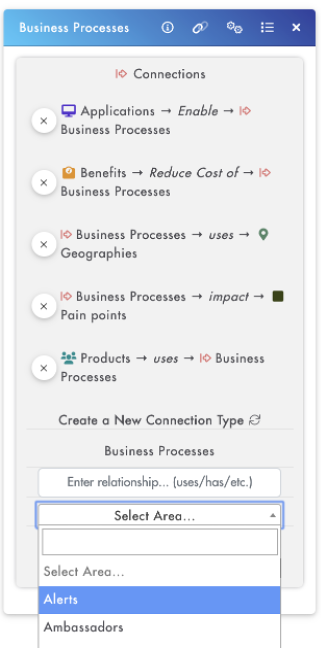
When relationships have been created you can create connections between layer items on the Canvas using the Advanced toolbar:
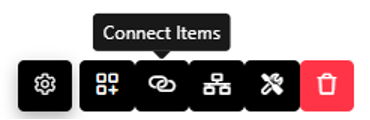
A line can then be dragged between the two items to connect them. Here we’re creating a link between Employee Master and SAP S/4HANA:
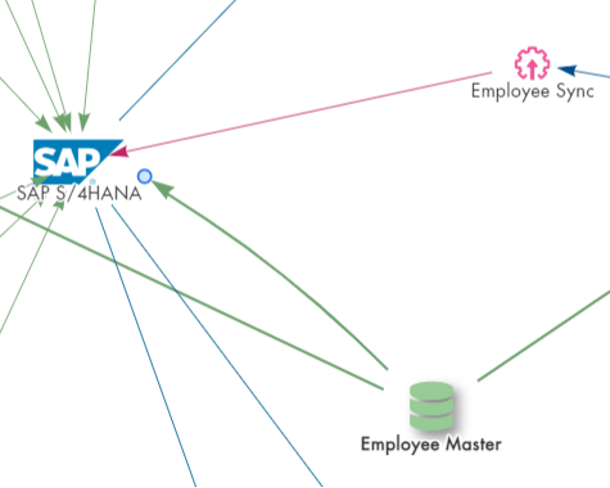
Note: If there are multiple connection relationships available between two items you will be prompted to select the one you wish to create.
Maintaining Item Properties
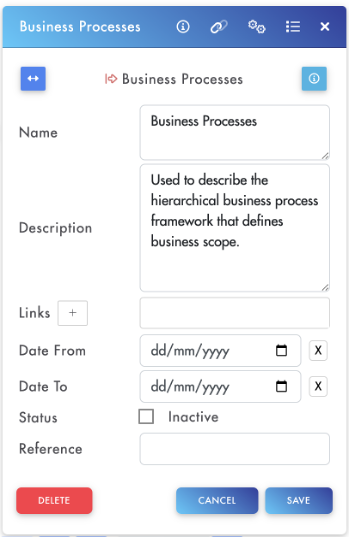
The properties panel in FusionGraph allows you to add custom field details to your layer items. Custom properties can be added to any layer to store additional texts, dates, numbers, checkboxes, etc.
To create properties, add the parent layer to the canvas and double-click into it to open the properties.
Select the Dots/Dashes Icon to configure available properties for the layer's items.
The new properties fields can then be added by providing a field name along with the required type.
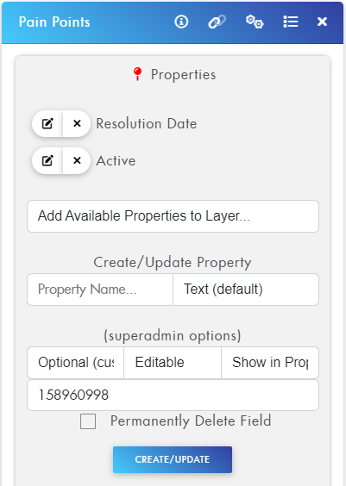
For any items created within FusionGraph it’s possible to edit their properties to capture more information and provide links, dates, etc.
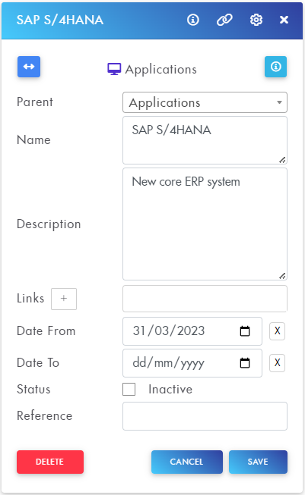
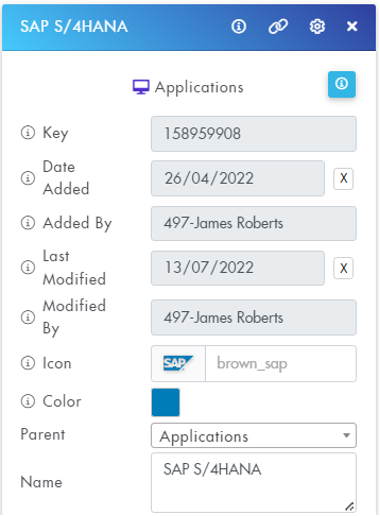
The item properties popup can be expanded to see more details via the  button.
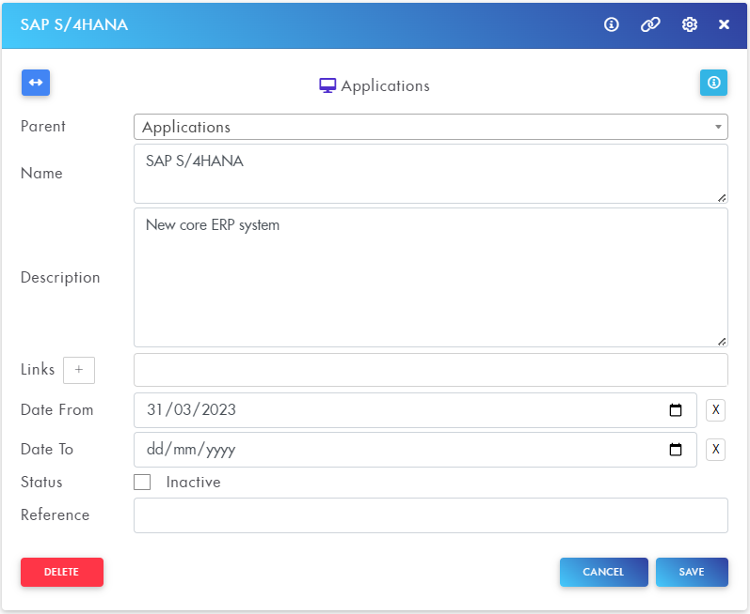
It’s also possible to use  button to expand the details further to see audit information and to set an icon and colour if required:
Data Preparation & Clean Up
When importing data into FusionGraph it must match the expected formatting.
Files must be imported as a CSV file.
Dates must be formatted as YYYY-MM-DD
For the data layers you wish to use it will be required to document and list the various items ready for upload into FusionGraph.
Ideally these should be provided in Excel format so they can easily be converted into CSV format for upload.
For each item the following data can be loaded:
|
Reference number |
Required and useful for identification |
|
Name |
Unique name for the item. E.g. SAP ECC |
|
Description |
Provide a more detailed description of the item |
|
Links |
To provide URL links to another information source |
|
Date From |
Optional in format YYYY-MM-DD Required for time based items like projects and phases. Also useful to show the lifespan of items especially where they are due to be decommissioned or replaced. |
|
Date To |
As above in format YYYY-MM-DD |
|
Custom properties |
If defined |
|
Classifications |
Optionally used to classify the data item. It’s possible to classify the data as part of the upload process or this can be uploaded or manually done later. To classify the data, a column is required for the relevant classification and needs to contain the exact text for the required value in FusionGraph. |
|
Connections & Relationships |
Optionally used to create connections between items. It’s possible to create connections between data items as part of the upload process or these can be uploaded or manually done later. To connect data layer items, a column is required for the relevant layer relationship name and needs to contain the exact name(s) of the connection data items all comma separated. Initially this is more important for certain data layers: ● Interfaces: To indicate which applications the interfaces connect from and to ● Business processes: To indicate which applications they run on and in which geographies ● Data entities: To indicate which applications, interfaces, business processes they connect to |
Importing Data into FusionGraph
Data Import Process
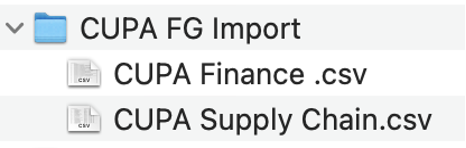
To import data first prepare a CSV file using the steps in the Clean Up Data section.
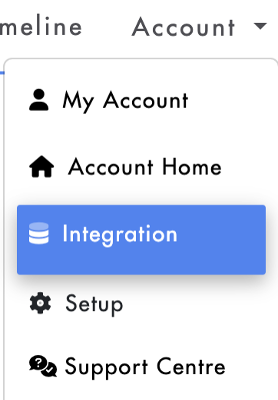
Once the file is created, navigate to the Integration area of FusionGraph.
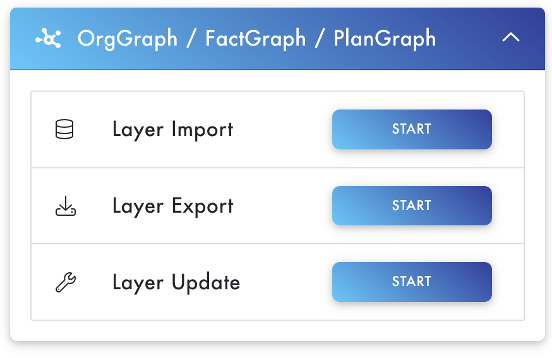
Under the OrgGraph, FactGraph, PlanGraph section click Start for Layer Import.
Using the dropdown menu select the Layer the data will be imported to.
Enter a name for the import using a format such as Client Name - Import Area - Initials of Importer - Date
Note: using the same import name as an existing import will also append any newly created data to that import record. This allows it to be viewed (and deleted if needed) as one import dataset.
Once the Import Layer has been selected and the import has been named click the Upload CSV & Import button.

Select the CSV File for Import.
The CSV Import Summary screen will now appear.
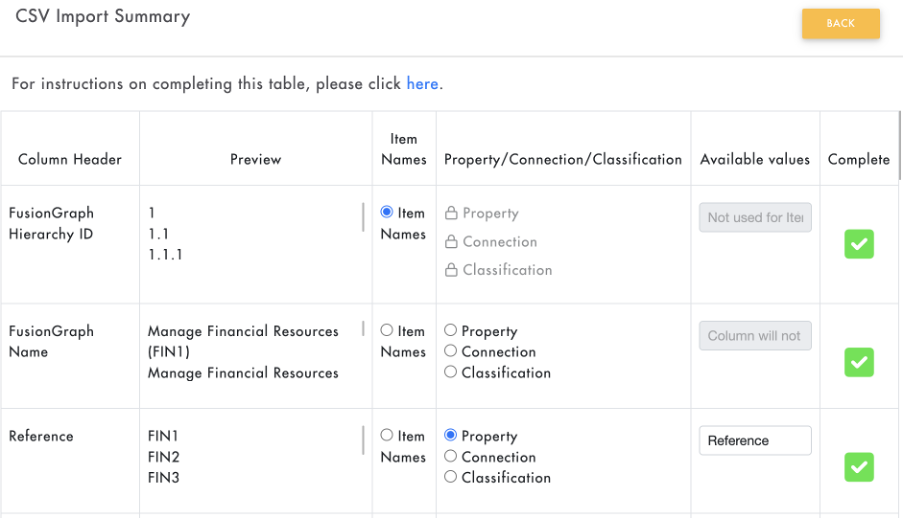
Each column in the CSV file can be seen as a row in the CSV Import Summary screen.
Every import must include the Reference and Item Name fields.
For this import, the Item Name and Reference fields need to be changed from the defaults.
To reassign the Item Name find the correct row and click the Item Names Button.

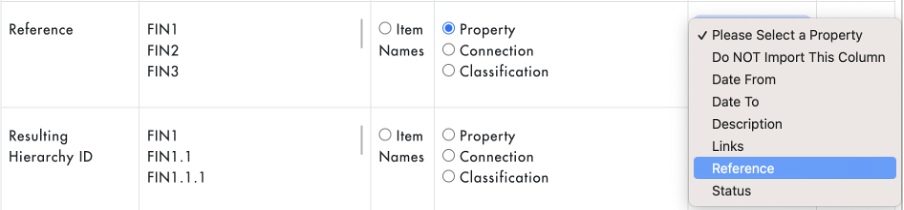
To reassign the Reference field find the Reference Row and click the Property button, then select Reference from the drop-down menu.
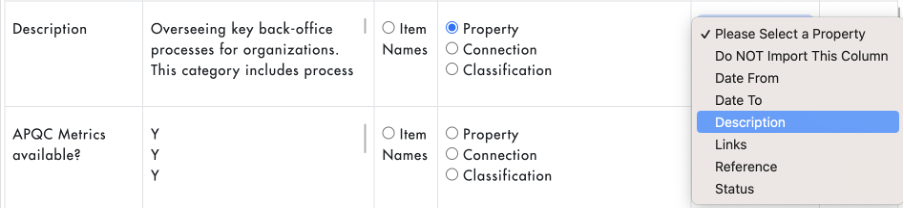
To import the Item Description find the Description Row and click the Property button, then select Description from the drop-down menu.
To import Classifications find the corresponding row, click the Classification button and select the Classification from the drop-down menu.
Note: The classification must be created in FusionGraph before it can be selected during import (see Creating Data Layers, Classifications & Relationships).

To import the Item Current Applications find the Application Row and click the Connection button, then select Connection from the drop-down menu.
Note: The connection must be created in FusionGraph before it can be selected during import (see Creating Data Layers, Classifications & Relationships).
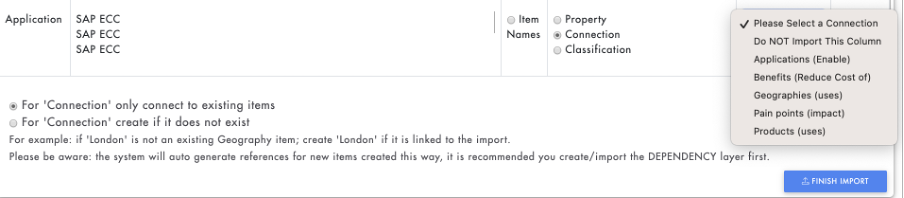
When any Connection fields have been selected you need to select which action is to be performed from the options at the bottom of the fields.
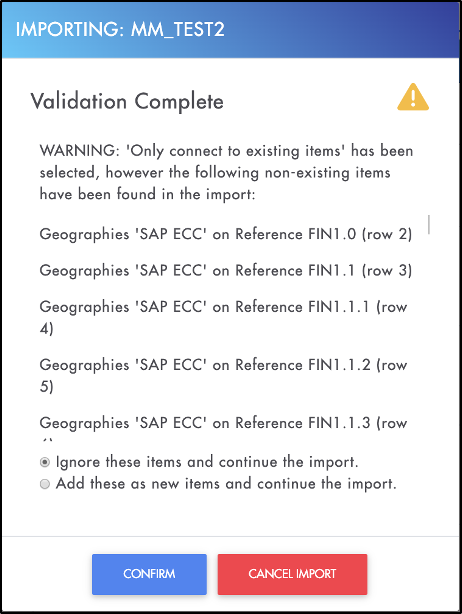
For 'Connection' only connect to existing items’
This option is to be used to make connections to items that already exist in FusionGraph.
For example, if the data is trying to connect to Application SAP ECC and SAP ECC doesn’t already exist in FusionGraph, then no connection will be made.
Firstly, the FusionGraph checks the existing data to see if any items that are mentioned in the connection rows already exist.
You will then be presented with two options below ..
- Ignore these items and continue the import’ - New items from this column will not be created and no connections will be made
- Add these as new items and continue the import - New items from this column will be created and connections will then be made
Note: If FusionGraph finds new data within that column in the CSV that doesn't already exist, it will give you a warning and a summary of the items identified. The items identified in error may be an indication of a typo in the name. This allows users the ability to abandon the import process and correct any mistakes (if there are any) and re-attempt the import.
For 'Connection' create if it does not exist’
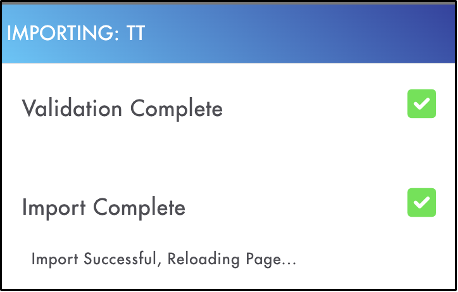
FusionGraph will automatically create a new item and a connection to it from the imported data. A pop up will appear stating “ Validation Complete” (see below figure).
Note: FusionGraph will automatically generate reference numbers for any new items created this way. It is recommended that you create/import the dependency layer items first to provide greater control over what data is created.
Finishing the Import
Once all data has been selected click the Finish Import button to import the CSV. The import will now be available to view in FusionGraph.
Manage Existing Imports
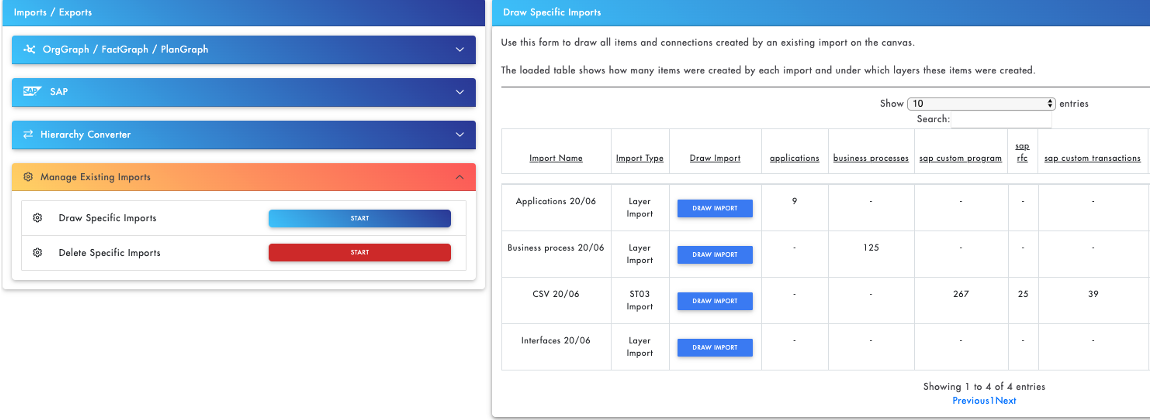
You can view a list of imports using the Draw Specific Imports option.
Clicking Draw Import on any of the imports will display the data in the Canvas view.
All items that were created in that import name will be displayed.
Similarly, if you wish to delete all the data that was imported for any import name you can do so via the Delete Specific Imports option.
Note that once data is deleted it cannot be retrieved so be very careful when using this option.
ST03N Import
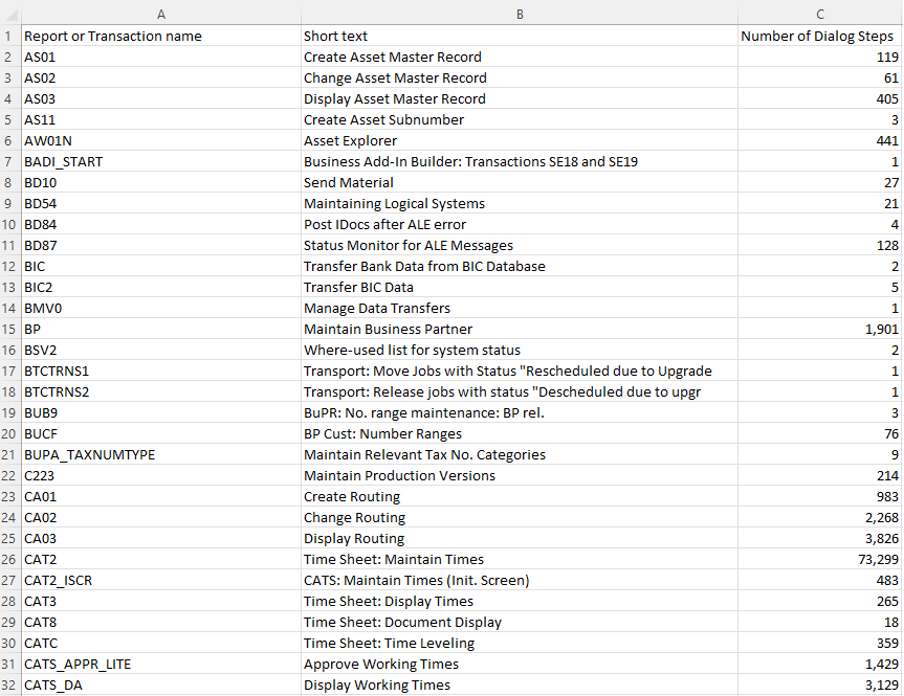
The ST03N transaction allows SAP usage data to be exported from SAP. This provides an overview of which transactions and programs are being used by the customer and also includes custom code.
ST03N data can be exported from SAP as per the instructions here:
https://fusiongraph.resulting-it.com/en/knowledge/exporting-your-st03n
Your file must be in CSV format like the example below.
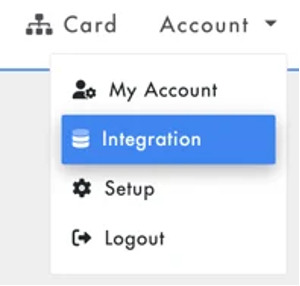
To import the data, click on Integration in the account dropdown menu.
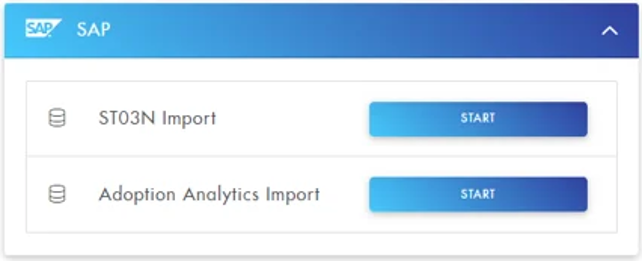
Select SAP from the left hand menu and press 'Start' on ST03N. This will open the ST03N Import window on the right.
Select which SAP Components the ST03N Import contains. Normally you should import everything via the Import All SAP Components at the bottom of this list.
Components selected will be imported. Also give your ST03N Import a unique name.
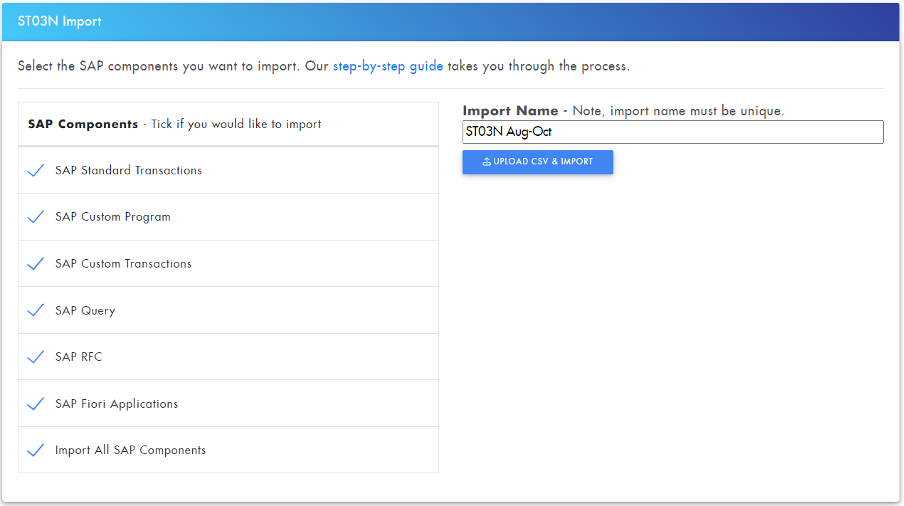
Once you have selected all required options, you can select Upload CSV & Import.
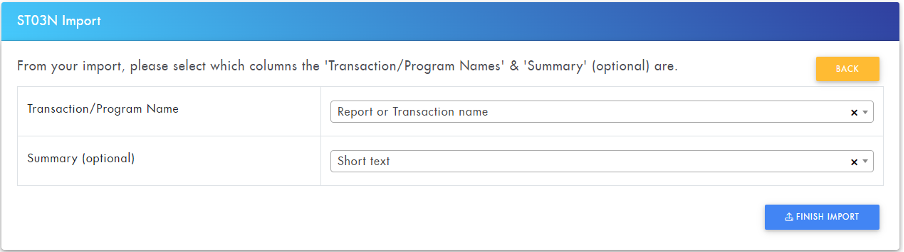
Once the import file has been selected, a second window will appear. Here you can select which column from your CSV contains the 'Transaction/Program Name' and optionally, which column contains the Summary/Short text. This will add a description to each imported item. Once your columns have been selected, press Finish Import.
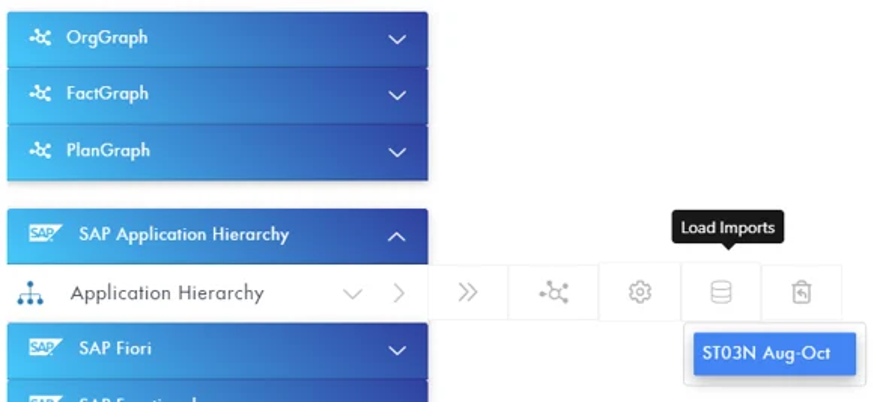
You can view which parts of the Application Hierarchy tree are being used by opening the Application Hierarchy flyout and clicking on the import in the Load Imports dropdown.
This will show the Application Hierarchy items connected to the ST03N Import.
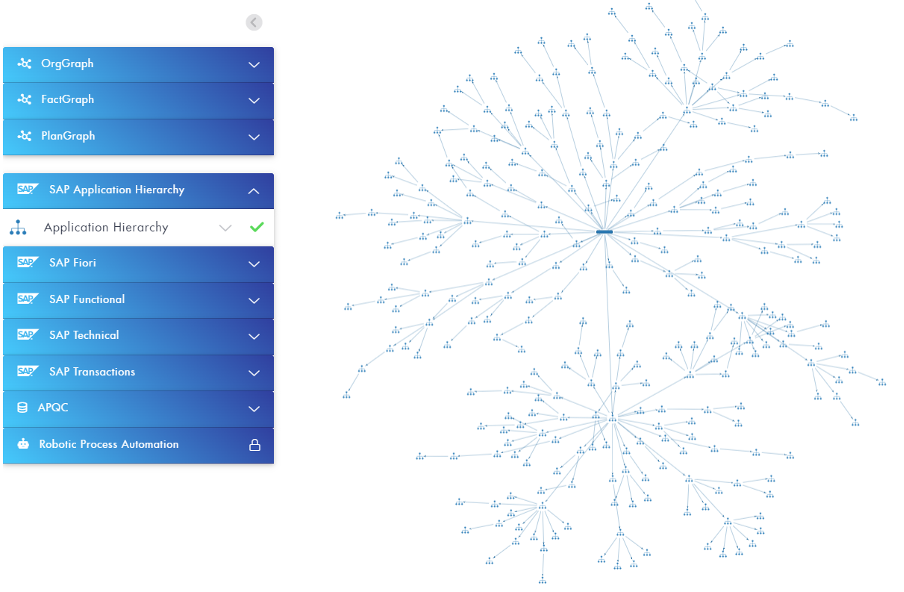
You can then zoom in or search for a specific area to explore the items in more detail.
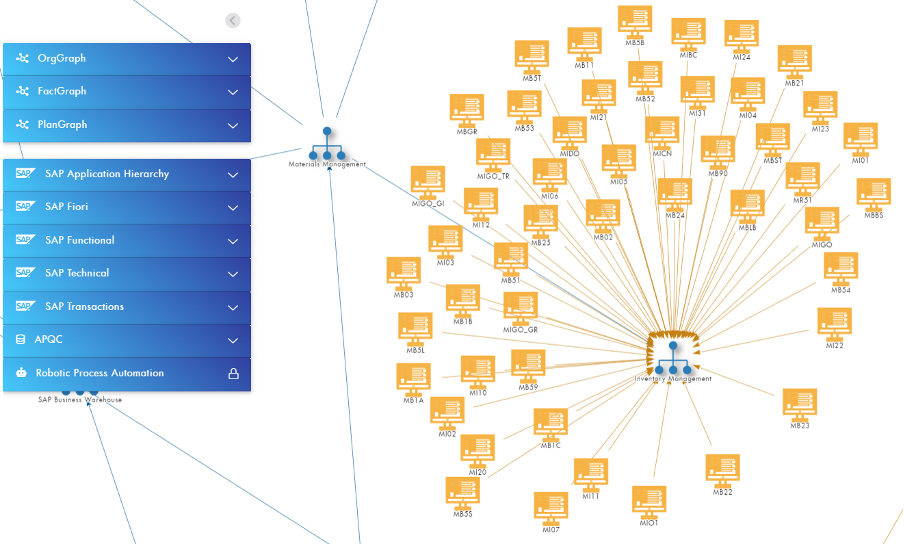
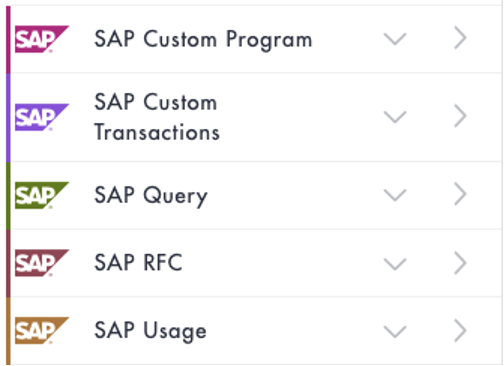
Your imported ST03N items will also populate the FactGraph under the following layers so you can explore your custom programs and transactions in more detail.
- SAP Custom Program
- SAP Custom Transactions
- SAP Query
- SAP RFC
- SAP Usage
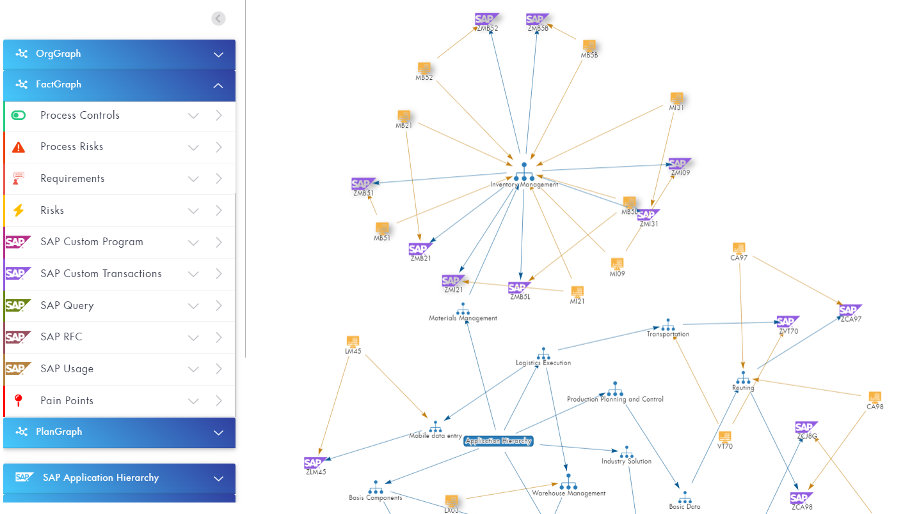
For example, you can add the SAP Custom Transactions to the Canvas and then impact assess them against the SAP Transactions and the SAP Application Hierarchy to see where they are connected to.
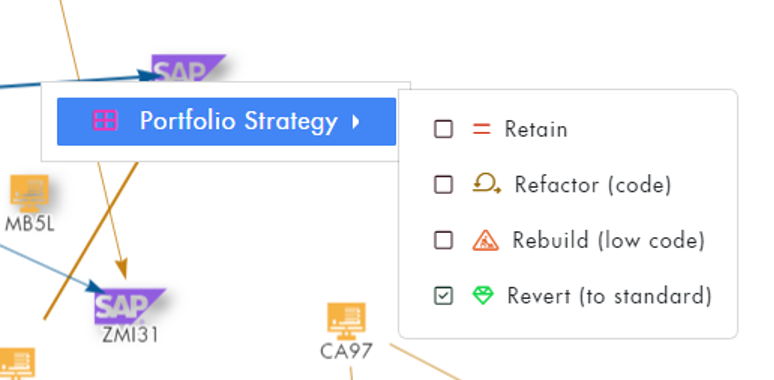
Right-clicking a SAP Custom Transaction will allow you to classify the action for each one.
Business Process Import example with connected classifications
This section is similar to the Importing Data into FusionGraph section but provides a specific example on how to import business process data which is in a hierarchical format and where items need to be created as parents and children.
Step 1 - Setting up the Required Fields in the Spreadsheet.
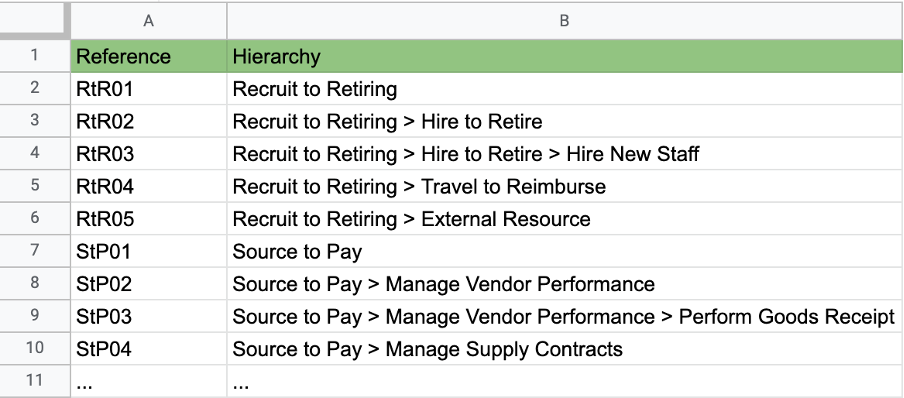
Your spreadsheet must contain a Reference column (called 'Reference'), containing a unique ID for each Business Process, and a hierarchy column containing the names of each Business Process.
To create the Business Processes in a hierarchy, then you must separate each item with a '>'.
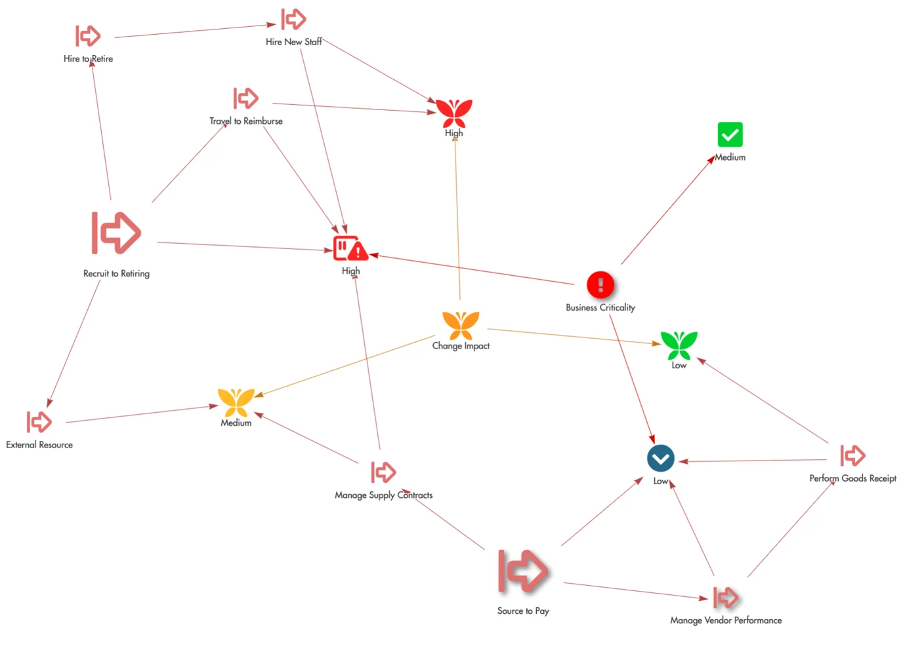
In the example data below, Hire New Staff will be created underneath Hire to Retire which will be created under Recruit to Retiring.
Step 2 - Setting up Classifications in the Spreadsheet
For setting classifications, make sure the classification has been created and exists first in FusionGraph.
Note that the classification text values in the source file must be an exact match to the FusionGraph classification values otherwise the classification will not be set.
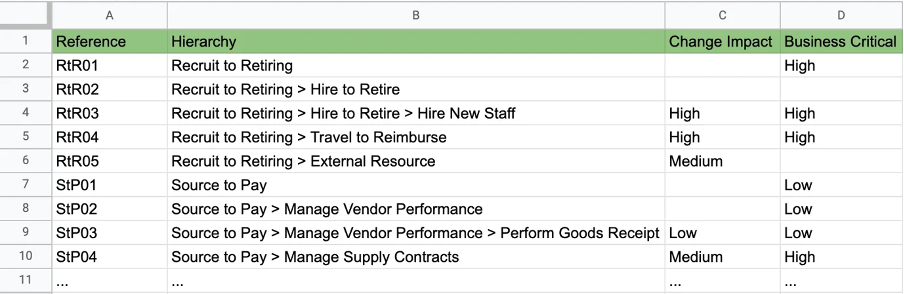
NOTE. The Classifications will only be applied to the items where a value is present in the input data. For example, External Resource (row 6) will be given a Change Impact value of Medium but its parent, Recruit to Retiring will not. If you would like higher level items to be given a value you need to specify the value on the appropriate row as well.
Step 3 - Save / Download the spreadsheet into a CSV format.
The spreadsheet needs to be saved / downloaded as a CSV file format prior to loading into FusionGraph.
Step 4 - Open the Integration tab in FusionGraph.
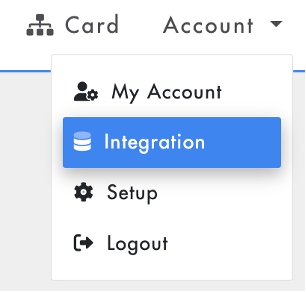
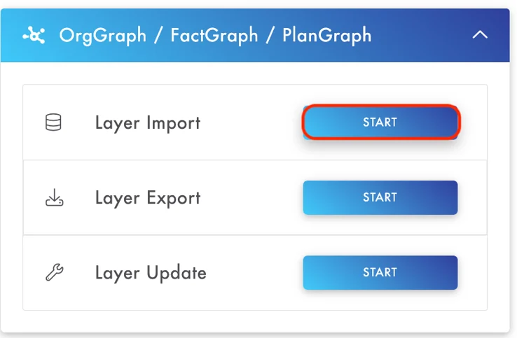
Step 5 - Click OrgGraph / FactGraph / PlanGraph and Start on Layer Import
Step 6 - Layer Selection
Select which layer you want to import to and give your import an appropriate name. Then press 'Upload CSV & Import' and select your CSV input data.
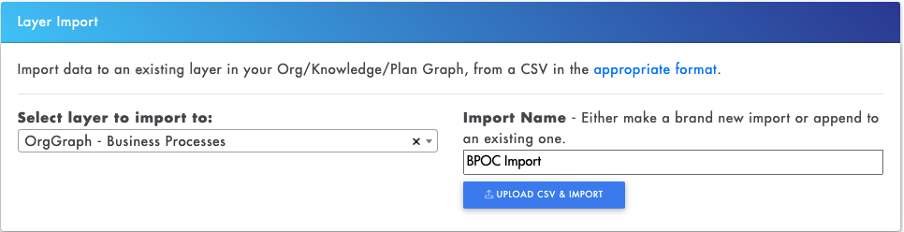
Error Checking:
If you see 'Unable to determine Reference column from imported CSV' then your CSV does not contain a column called 'Reference'. To fix this, rename your reference column header to 'Reference' and try again.
If you see 'WARNING! Duplicates of the following Reference names were found...' then your reference column is not unique. You may continue with the import, although items with the same reference may not be imported correctly. To fix this check your reference column for duplicate values and try again.
If the error checks have passed you should see a CSV Import Summary table.
Step 7 - CSV Import Summary Table (merge with Importing data?)
Each column of the imported CSV file has been converted into a row in this table. The Reference column and the Hierarchy column, containing the item names, have been automatically assigned.
By default, classifications and connections will not be imported. To import them, click on Classification or Connections then from the dropdown select which classification it refers to.
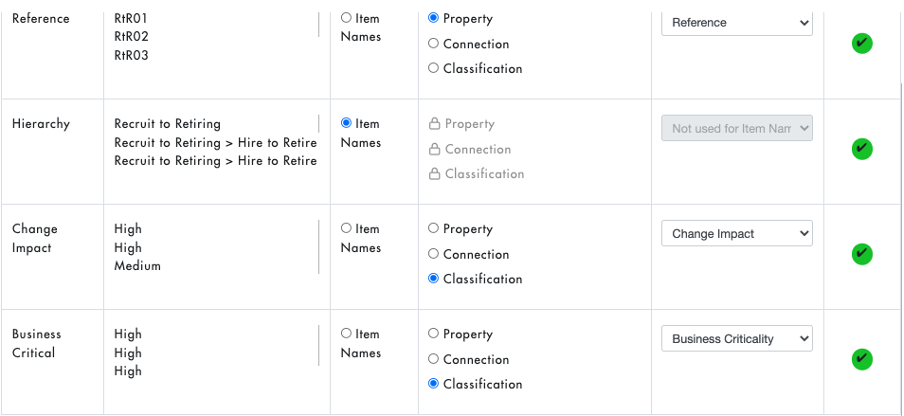
PLEASE NOTE: If you accidentally click Property/Connection/Classification for a column you do not want to import. You can select 'Do NOT Import This Column' from the dropdown to deselect it.
Step 8 - Finish Import
Once every row has a ✅ you can press 'Finish Import' to start importing the data into FusionGraph. For large BPOCs this may take a while and will continue in the background, you can check the process in the 'Draw Specific Import Area'.
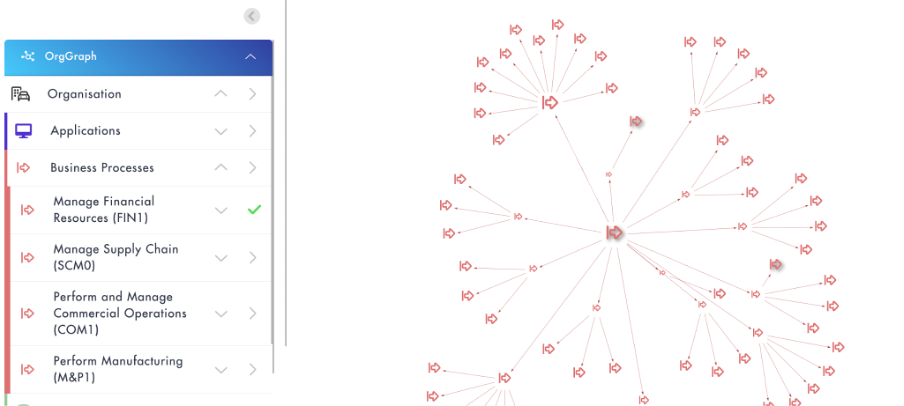
Below is a screenshot of the example spreadsheet on the Canvas view. You can draw this by selecting the Import from the Left Hand fly out.